Instructions to Create a Email Signature
- Once on Gmail, click the
 Cog button in the top right.
 - Click the 'See all Settings' button
- Scroll down to the Signature Section.
- Click Create new.
- Name your new signature.
- Type out your new signature.
- If you want to use this signature for all emails,
- Click the drop down menu under 'For new Emails', then select the signature name.
- Scroll to the bottom of the page and Click Save Changes.
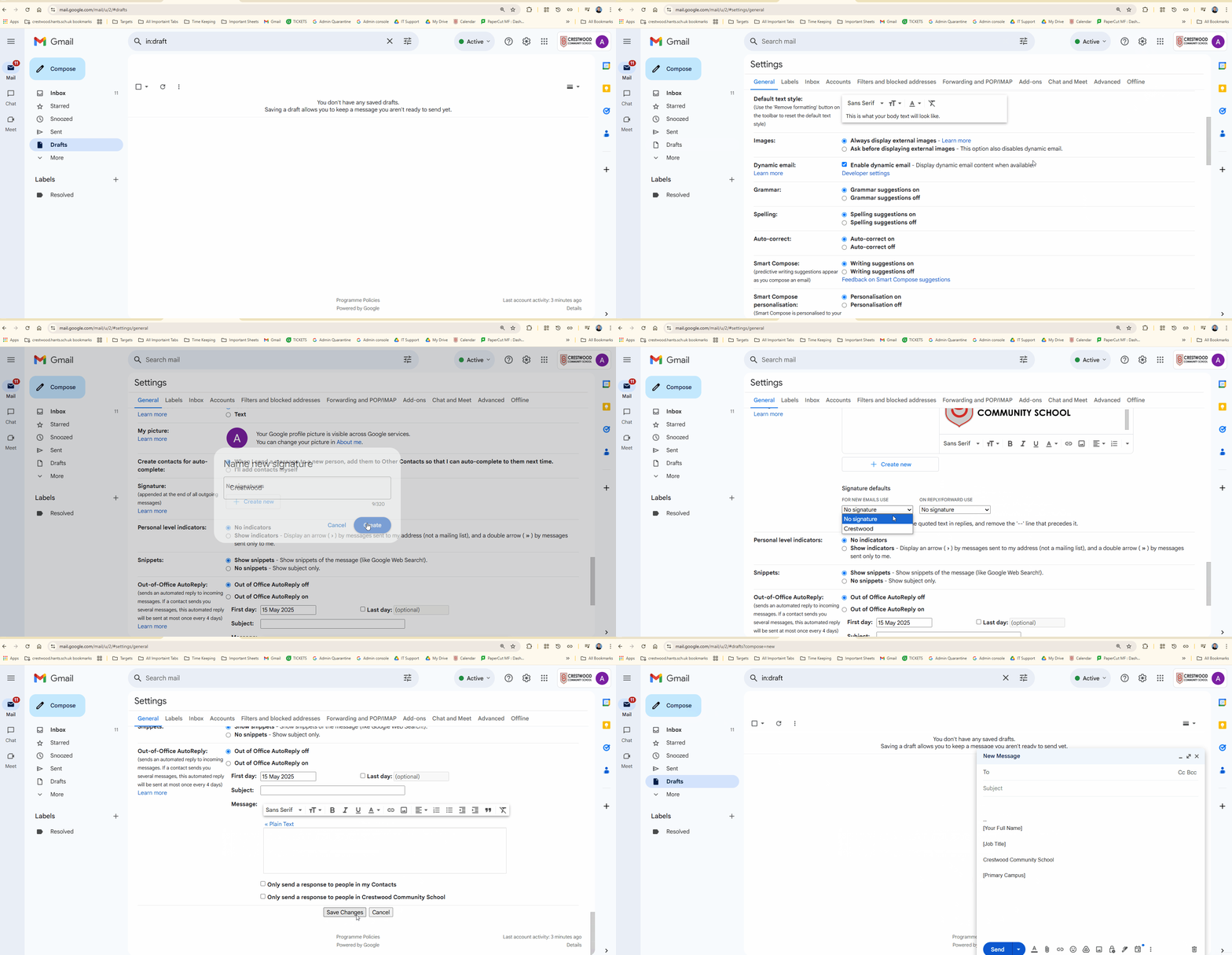
Example of a Email Signature
[Your Full Name]
[Job Title]
Crestwood Community School
[Primary Campus]

Need More Help?
If you’re still having trouble, please contact the IT Support Team:
Was this article helpful?
That’s Great!
Thank you for your feedback
Sorry! We couldn't be helpful
Thank you for your feedback
Feedback sent
We appreciate your effort and will try to fix the article