By default, closing your laptop lid may put the device into sleep mode. If you need your laptop to remain active when the lid is closed, for example, when using external monitors, you can change the power settings.
- Open Settings
- Select System > Power & battery
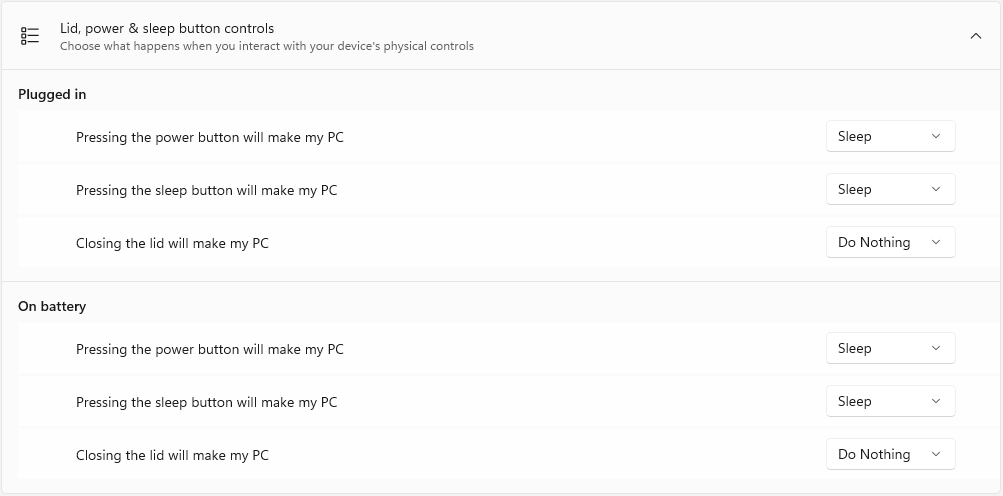
- Expand Lid, power & sleep button controls
- Under Closing the lid will make my PC, select Do nothing for the relevant power option:
- On battery
- Plugged in
Your laptop should now remain on when the lid is closed.
Important
Keeping your laptop running with the lid closed may cause it to generate more heat, particularly if it is performing intensive tasks. Make sure the laptop is placed somewhere with adequate ventilation.
If the option is unavailable or you are unable to change the setting, contact IT Support for assistance.
Was this article helpful?
That’s Great!
Thank you for your feedback
Sorry! We couldn't be helpful
Thank you for your feedback
Feedback sent
We appreciate your effort and will try to fix the article