Chromebook: Typing Wrong Letters
If a student attempts to sign into a Chromebook and the letter that they type on the keyboard isn't the ones that are appearing on screen, this maybe due to someone changing the language settings. To return the Chromebook back to default settings, please follow the instructions below:
Changing Keyboard Language on Chromebooks
Step 1: Click on the clock in the bottom right corner
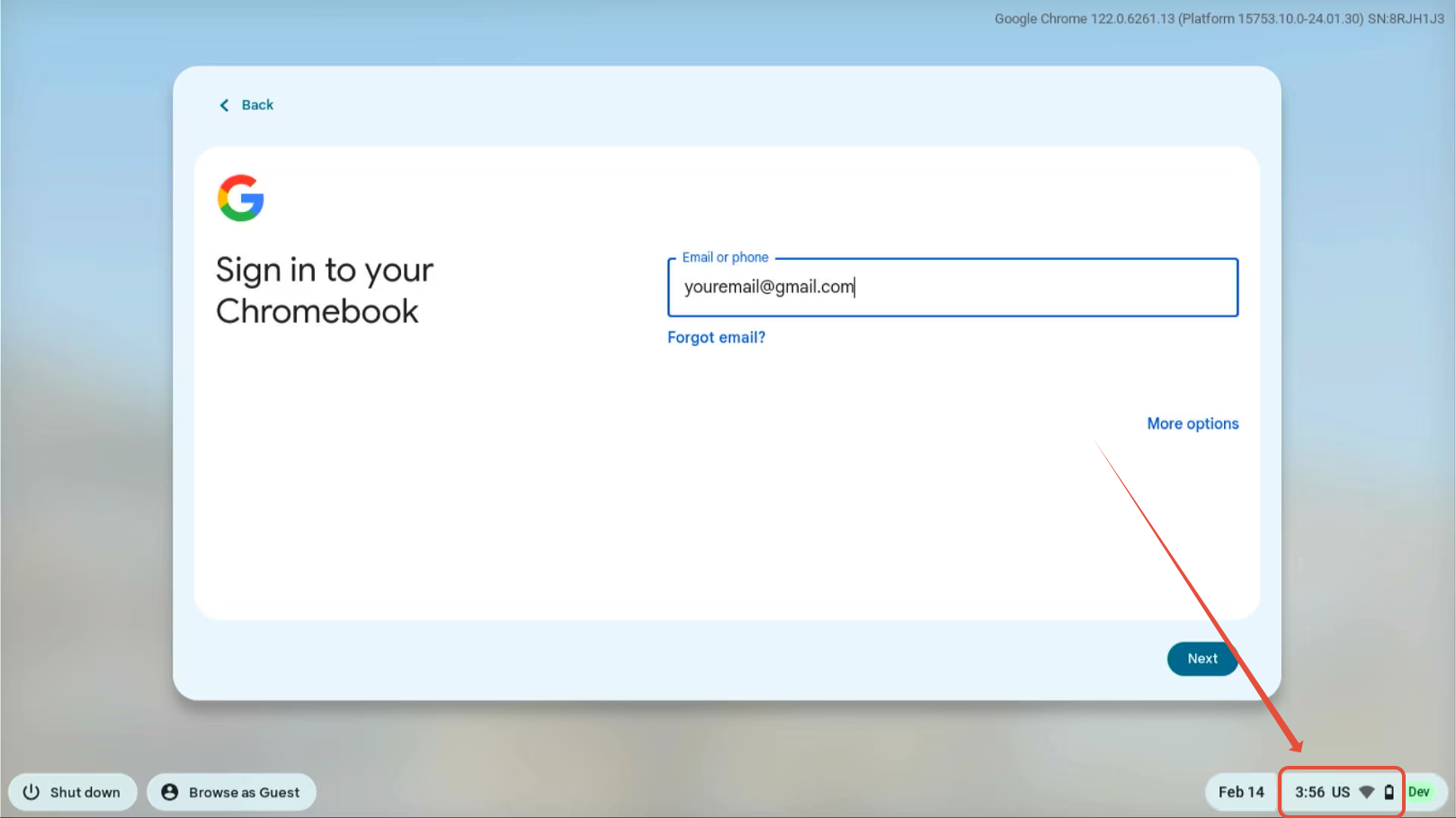 This should then open up a settings menu.
Step 2: Click on the Keyboard button
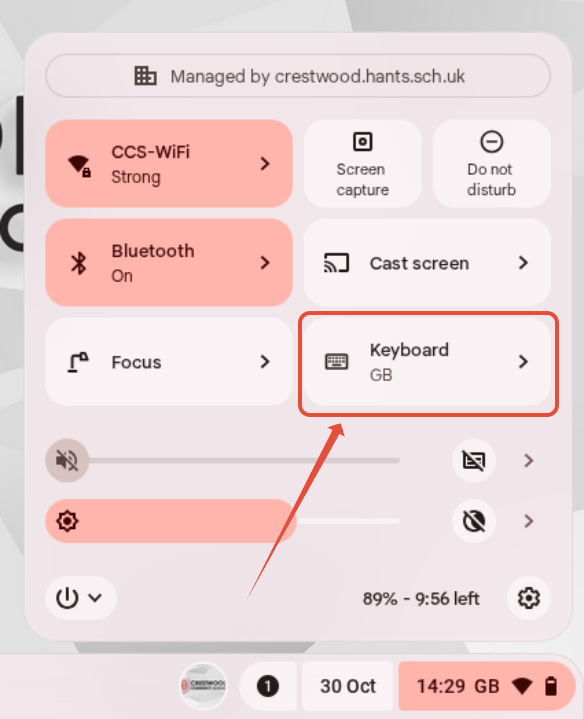
- If this shows anything other that GB under the word keyboard then it will not type English letters correctly.
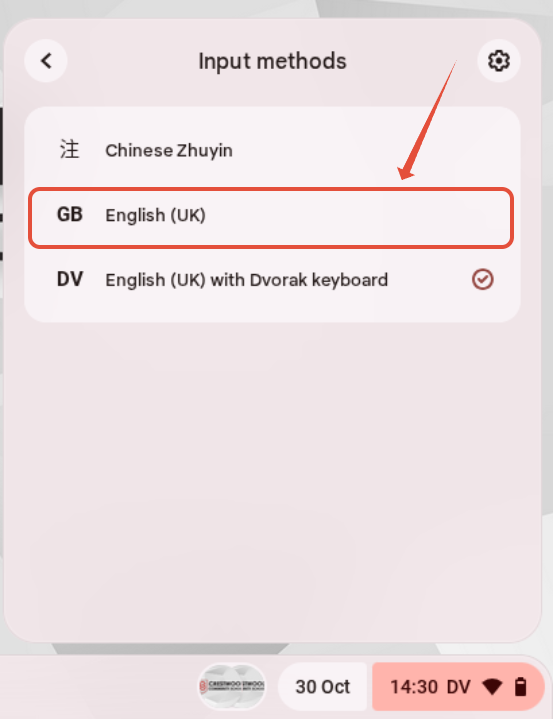
Step 3: Select the 'GB English (UK)'
Need More Help?
If you’re still having trouble, please contact the IT Support Team:
Was this article helpful?
That’s Great!
Thank you for your feedback
Sorry! We couldn't be helpful
Thank you for your feedback
Feedback sent
We appreciate your effort and will try to fix the article