There are many variables as to why a projector may not be displaying as intended.
Please find below a few possible solutions.
Source on Projector incorrect
On occasion the source for the image changes back to it's default setting. Fortunately this can be easily fixed by following the steps below:
- Check the back of the projector and note which HDMI port the HDMI is plugged into.
- On the Projector remote, press the 'Source' button.
- Ensure the correct HDMI input is selected.
Extend/ Duplicate Laptop Display Settings
Sometimes the display setting on the laptop may have changed
Windows
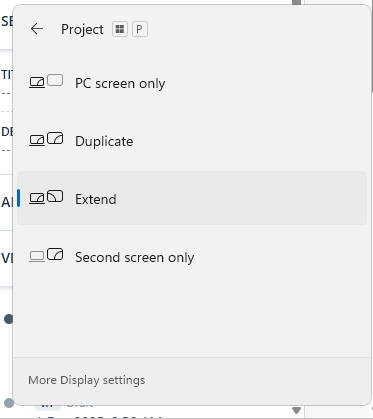
- Press Windows key + the 'P' key to bring up the Projection menu
- select 'Extend' or 'Duplicate'.
- Extend will make the projector into another screen, this is good for showing the class something different to what is on the laptop screen
- Duplicate will project the same thing that is on your laptop screen.
Chromebook
Source on Projector incorrect
- On the Projector remote, press the 'Menu' button.
- Navigate to
- click 'Source'
- Select the correct HDMI input
Check plugs, switches and Cables.
Although it sounds simple, loose cables or the power being turned off is one of the leading reasons for projectors and speakers not working.
- Make sure that the power plugs for the projectors have not become unplugged or loose.
- Ensure that the switches for the plugs have not been switched off.
- Check the connections for HDMI cables and power cables, the connection points are at the back of the projector it's self, at the HDMI connection mounted to the wall and the connection to the laptop.
Restart the Projector
Turn it off and on again while the laptop is plugged in
Was this article helpful?
That’s Great!
Thank you for your feedback
Sorry! We couldn't be helpful
Thank you for your feedback
Feedback sent
We appreciate your effort and will try to fix the article